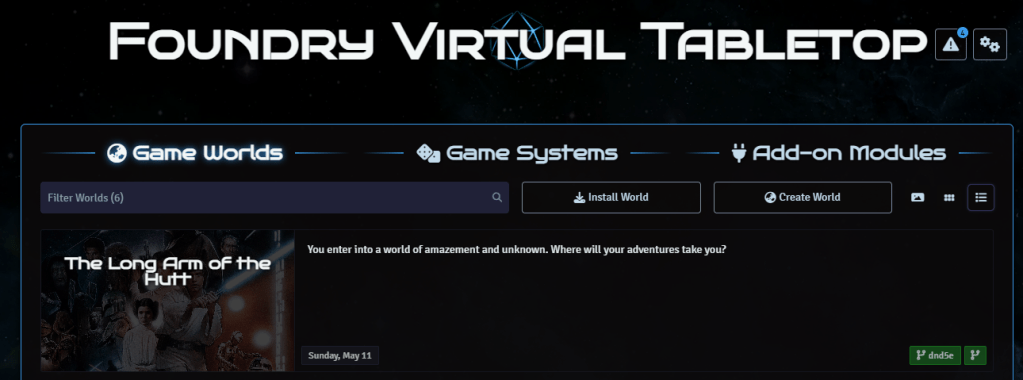
I found a lot of people were still going to my article on installing the SW5e System for Foundry, but the latest releases for SW5e for Foundry are now released as a module for the D&D 5e Game System. So here we are with an updated version of the article, this time for the SW5e module!
The GitHub has some instructions in it, but if you can’t find the GitHub repo (or you are completely new to Foundry and the Forge) you might have a hard time figuring it out. When you first go into the module installer in Foundry, a search for SW5e turns up zero results. So, let’s show you how to get that module installed!
NOTE: These are instructions for starting from scratch. If you already have Foundry setup on the Forge, skip to Step 5.
Step 1: Get Your Account and License
You are going to need a few things to install it on The Forge:
- Foundry license: If you pay for the Forge subscription, it does not include the Foundry license. So make sure you have one: https://foundryvtt.com/purchase
- Forge account: You need to setup a Forge Account: https://forge-vtt.com.
Step 2: Add your Foundry License to your Forge account
Once you have your Forge Account and your Foundry license, you need to tie the two together:
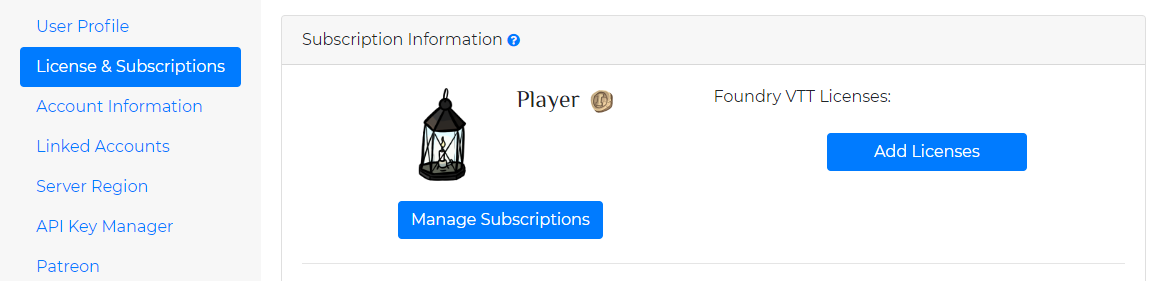
- After logging into the Forge, select your account name in the top menu and navigate to My Account
- Switch to License & Subscriptions
- Click on the Add Licenses button.
- Copy/paste your License Key from your Foundry account into the field on the modal.
Step 3: Add a Forge subscription
When you create an account, you get the free player subscription. To run games, you’ll need a subscription. “Game Master” is the lowest subscription tier, and a good place to start. You do get a 14-day trial to decide on if you’ll want to pay or not before a charge kicks in. Here’s how you get your subscription:
- In the License & Subscriptions area of your account, click on the Manage Subscriptions button.
- Select a subscription (I chose Game Master, Yearly, to get cheapest overall costs)
- Hit Next > button
- Enter the Billing info for your address and hit Next >
- Provide your Payment details (likely a credit card) and hit Next >
- Confirm the charges.
Note that you are not invoiced right away. The charges will happen 14 days after you submit.
Step 4: Launch Foundry
Before adding the SW5e module, you’ll need a Foundry instance up and running.
- From the menu, select My Foundry > Launch My Foundry.
- Agree to the End User License Agreement
- Choose if you want to share usage data. I usually suggest that you do not.
- OPTIONAL: There is a theme selection available via the gear icon in the top right. The Science Fiction theme is a fun flavour for your Star Wars players to enjoy.
At this point, we have a Foundry instance hosted in Forge, and you have your own URL for the instance. Now it’s time setup SW5e!
Step 5: Install D&D5e system
At first, this seems counterintuitive. You want to play Star Wars, not Dungeons and Dragons, right? The team behind the module is taking advantage of the great development work being done by the D&D system team, so to play Star Wars 5e we need to have D&D 5e as a base layer.
If you are a Foundry pro, you might already have the D&D system installed. If not, here’s how you get it.
- In the Game Systems area of Foundry launch screen, click the Install System button.
- In the search bar at the top, type “Dungeons”. The search results will show multiple results.
- Click the Install button next to the result named Dungeons & Dragons Fifth Edition.
- Close the dialog.
Now we need the Star Wars 5e layer!
Step 6: Install the SW5e Module
With the D&D5e base system now installed, it’s time to add the Star Wars 5e module on top of it. As with game systems, you can search for fun modules to add on. Unfortunately, SW5e is not listed as a module, so we’ll need to do this manually.
- In the Add-on Modules area of the Foundry launch screen, click the Install Module button.
- At the bottom of the dialog, paste in the manifest URL (provided on the GitHub README): https://github.com/sw5e-foundry/sw5e-module/releases/latest/download/module.json
- Press the Install button and complete the installation.
At this point you have a base game system and the module installed, but you still need to setup a world and turn the module on.
Step 7: Create the Game World
The Game World is where your players will login and where you will activate which modules will be used. In this step you will create a new world on the D&D 5e system.
- On the Game Worlds page in the Foundry setup screen, click the Create World button.
- Fill out the form to name your world. Example:
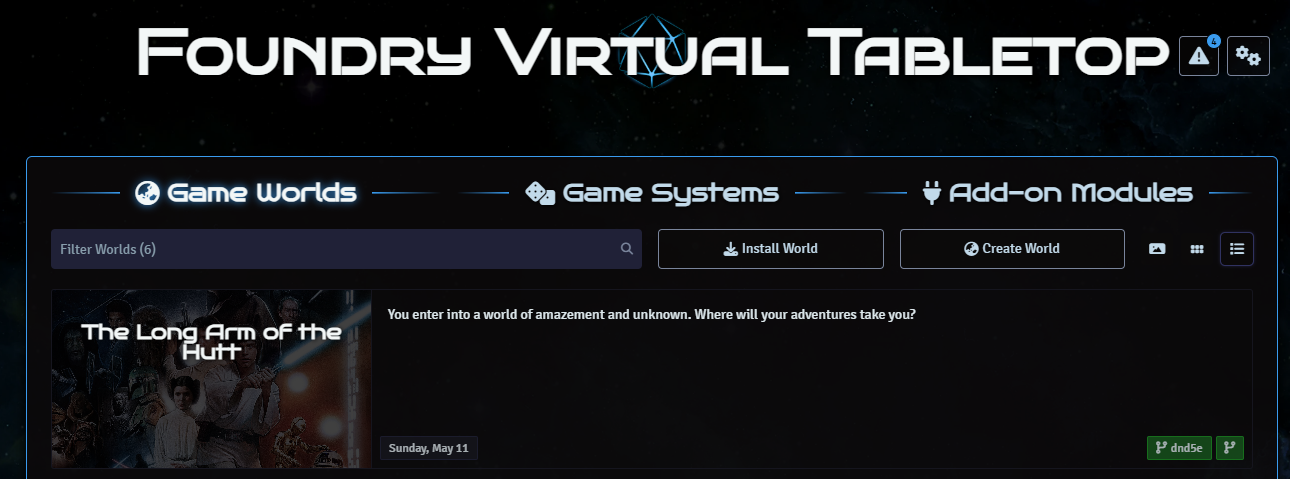
- World Title: The Long Arm of the Hutt
- Data Path: the-long-arm-of-the-hutt (will be auto-populated based on name)
- Select the Game System as Dungeons & Dragons Fifth Edition.
- Provide a Background Image, if you have one. This will display when players go to login, but you don’t need it now.
- You can skip the Join Page Theme and Next Session fields for now, as well as the World Description, but specify these if you feel like it.
- Click the Create World button.
Now you have a game world!
Step 8: Activate the SW5e module
Now that your world is setup and you have all the prerequisites, it’s time to turn on the SW5e module for you and your players.
- On the Game Worlds tab of the Foundry setup screen, click on your Game World to launch it.
- On the login screen, select Gamemaster (default user).
- ⚠️ B️y default, the password is blank for the Gamemaster on a new world. You’ll want to change that soon!
- Click on the Join Game Session button.
- Once logged in, click on the cogs icon on the right side menu.
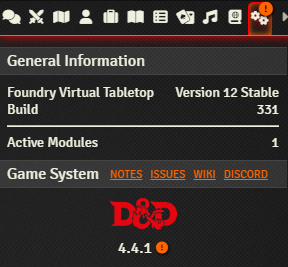
- In the Game Settings section click on the Manage Modules button to launch the modules dialog.
- Select the SW5e module (and accept the dependency libWrapper).
- Click on Save Module Settings.
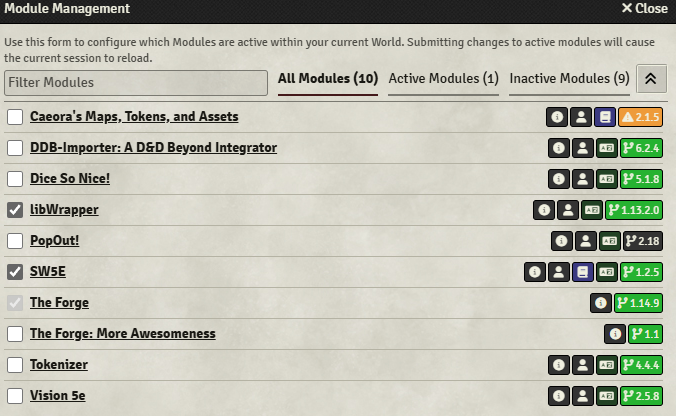
Foundry will reload, downloading data for your Game World. When you now go to your Compendium, you’ll see all the Star Wars 5th edition compendium data!!!
Congratulations! It’s now time to add user accounts for your players, invite them to play, and start creating some Actors for their characters!


 St-Cyr Thoughts
Leave a comment