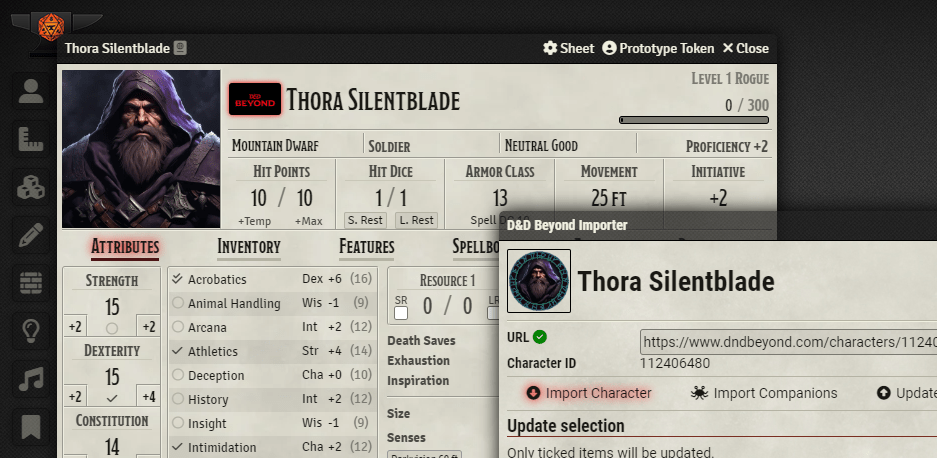
I’m setting up D&D 5e for the first time on my Foundry VTT instance (on The Forge) and decided to take down some notes on the steps I needed to go from a blank “dnd5e” module to having my character imported from D&D Beyond Character Generator.
Step 1: Create a Character on D&D Beyond
Use the D&D Beyond Character Builder to create a new character. There are a lot of settings you can toggle to choose what limitations you want, but ultimately you probably want to reduce as many ‘add-ons’ as possible. The Foundry dnd5e module only has the SRD content, so you probably want to stick as close to the PHB as possible, unless you want a bunch of other work later on.

Step 2: Add DDB-Importer module to The Forge
You can find details about the module on the Foundry site: https://foundryvtt.com/packages/ddb-importer
When you are ready, do the following actions to install the module from the Forge Bazaar:
- Login to https://forge-vtt.com
- Go to Bazaar ▶️Modules in the menu
- Search for “ddb”
- Click the “Install” button for the ddb-importer module
Step 3: Add DDB-Importer module to Foundry world
NOTE: I’m assuming you already have your world setup with the dnd5e module. If you haven’t, you need that to be done first.
Watch the official tutorial
In short, the steps you need to take are:
- Launch your Foundry world
- Go to the Game Settings menu
- Select Manage Modules to enable the module
- Enable the DDB-Importer module and save settings
Step 4: Import your character from D&D Beyond
Make sure you have a browser open on your character sheet and another window open in your Foundry game world.
- Create a new Actor (it doesn’t matter what you call it)
- Open the Actor’s sheet. Next to the character name you will see a D&D Beyond button now displays.
- Click the button.
- Copy the URL of your character from D&D Beyond (e.g. https://www.dndbeyond.com/characters/123456789)
- Paste it into the URL field of the D&D Beyond importer dialog
- Click on Start Import

Did you get an error about your D&D Beyond character not being public?
I ran into that issue when I first did my import. On the very first page of character creation there is a Character Privacy section that defaults to “Campaign Only”. I had selected “Private”, and this made it inaccessible to the importer.
If you forget to set it as Public during initial creation, that’s okay! In D&D Beyond Character sheet there is a small “Manage” button next to your character name. Choose Character settings and then scroll to the very bottom of that dialog to change your privacy setting on the character.
Step 5: Import again as you make changes in D&D Beyond
A key piece here is that you can maintain your character sheet completely in the Builder, and then do the import again to update your Foundry character sheet. If you make any selections that do not exist in the Foundry module’s compendiums, they will be auto-created in Foundry.

 St-Cyr Thoughts
Leave a comment