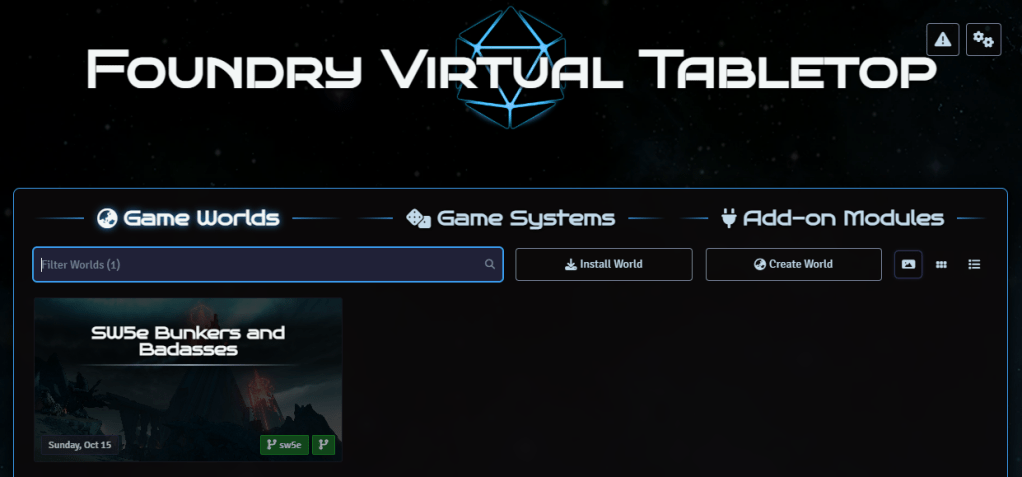
NOTE: This is for installing the SW5e Game System for Foundry. The latest releases for SW5e for Foundry are now as a module for the D&D 5e Game System. I have a NEW ARTICLE that covers the latest installation process!
I did some googling, but being a total newbie to this I had no idea what to search for or how to figure this out. I searched forums, I joined Discords, and saw enough brief mentions of ‘SW5e’ to know that somehow people had been able to do this. But I was having a hard time figuring out the exact steps, so I decided to capture what I did to get it to work.
Step 1: Get a Foundry license
I learned, while trying to set this up, that The Forge hosting subscription does not include a license for Foundry. This means the first thing you have to do is buy a perpetual Foundry license: https://foundryvtt.com/purchase
Already have a license? Hurray! You get to skip this step!
NOTE: You can’t just buy the license, they need you to have a logged in user account. So if you don’t already have a Foundry account, you’ll need to create one: https://foundryvtt.com/auth/register/
One you have a purchased license, it will be emailed to you and will also be available in the Purchased Licenses area of your account on FoundryVTT.com. Keep this handy, you’ll need it for the next steps!
Step 2: Add your Foundry License to your Forge account
In order to host a game, Forge needs you to have a valid Foundry license. After Step 1, we have that! Time to register it.
- Register/login to The Forge: https://forge-vtt.com
- Once you’ve logged in and validated your email, select your account name in the top menu and navigate to My Account
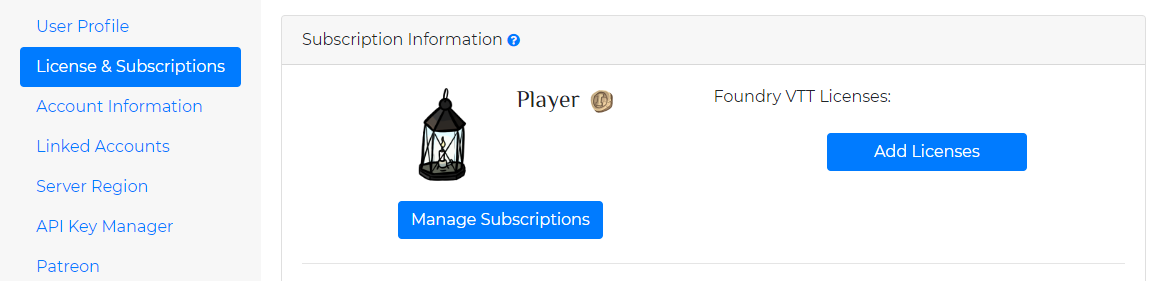
- Switch to License & Subscriptions
- Click on the Add Licenses button.
- Copy/paste your License Key from your Foundry account into the field on the modal.
Step 3: Add a Forge subscription
By default, you have a free player subscription. If you want to be a Game Master (lowest Forge subscription tier) you need to sign up for it. This is where you get 14 days of trial. Even though it says you get a 14-day trial, you have to sign up for a subscription to get the trial. At any time in the 14 days, you can cancel, but after that the charges start.
While still in the License & Subscriptions area:
- Click on the Manage Subscriptions button.
- Select a subscription (I chose Game Master, Yearly, to get cheapest overall costs)
- Hit Next > button
- Enter the Billing info for your address and hit Next >
- Provide your Payment details (likely a credit card) and hit Next >
- Confirm the charges.
Note that you are not invoiced right away. The charges will happen 14 days after you submit.
Step 4: Launch Foundry
We now have to setup the base Foundry instance.
- From the menu, select My Foundry > Launch My Foundry.
- Agree to the End User License Agreement
- Choose if you want to share usage data. I always say NO THANK YOU! to these things 🤣
- OPTIONAL: For fun, I changed the theme. In the top right is a little icon with two gears. In that dialog choose the Science Fiction theme to give a little Star Wars-ish flavour!
At this point, we have a Foundry instance hosted in Forge, and you have your own URL for the instance. Now it’s time setup SW5e!
Step 5: Install SW5e system
The SW5e Foundry module done by fans is hosted on GitHub, and not in the official Bazaar or Foundry module listing. You can find the full instructions in the repo: https://github.com/sw5e-foundry/sw5e
- In the Game Systems area of Foundry launch screen, click the Install System button
- At the bottom of the dialog, in the Manifest URL field, paste this value: https://raw.githubusercontent.com/sw5e-foundry/sw5e/master/static/system.json
- Click the Install button.
- Close the dialog.
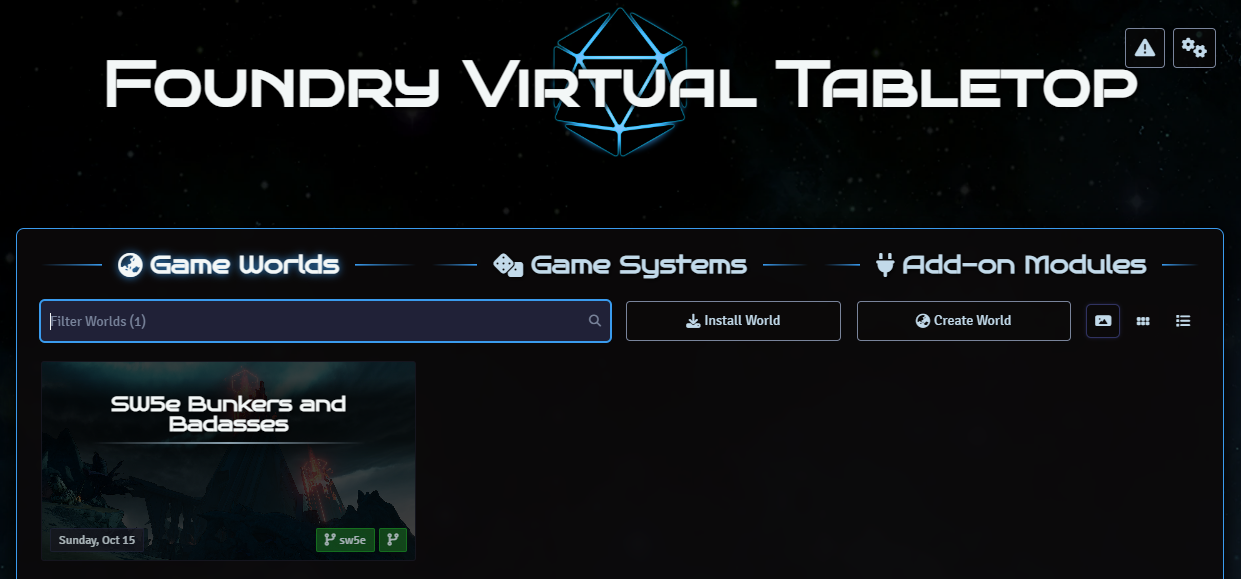
You will get a warning that it is not in the Bazaar and Foundry VTT will install the package instead. You will also notice you’ve been shifted to the Game Worlds area. It’s time to create your world!


 St-Cyr Thoughts
Leave a comment